- How to refund a payment
How to refund a payment
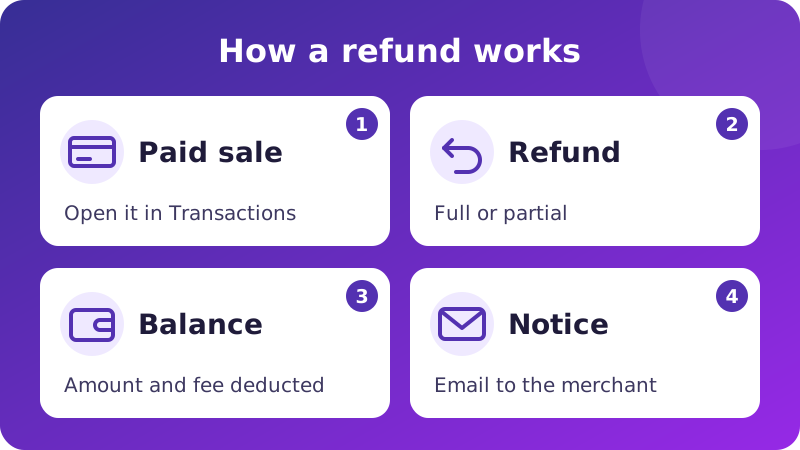
A customer asks for their money back. The order did not arrive on time, they chose the wrong size or they simply changed their mind. The sooner you sort it out, the less likely they are to end up disputing it with their bank. In this guide we explain how to refund a payment in PayOk and how to find your way around your transactions.
- How to find a transaction and what each status means.
- How to make a full or partial refund, step by step.
- What balance you need and which fee applies.
- How a refund differs from a cancellation and from a chargeback.
📌 The dashboard records the refund and deducts the amount and its fee from your balance. The refund number and the receipt document that record. To find out how and when your customer will receive the money, write to support with the refund number.
Where your transactions are and what each status means
All your transactions are in the Transactions menu, with three lists, which are All transactions, Refunds and Chargebacks. You can filter by amount, transaction number, status, country, dates, customer IP and the last 4 digits of the card.
With the Excel and Print buttons you export everything filtered, not just the page you see. It is the quick way to send your accountant a month of sales.
| Status | What it means | Can it be refunded? |
|---|---|---|
| Pending | The customer has not finished paying yet. | No, nothing has been charged. |
| Paid | Payment charged successfully. | Yes, if there is an amount left to refund and it has no chargeback. |
| Cancelled, Declined or Expired | The payment was not completed. | No, nothing has been charged. |
| Blocked by limit | The payment exceeded your account limits. | No, nothing has been charged. |
| Refund / Partial refund | The refund transaction, linked to its sale. | No. Any remaining amount is refunded from the original sale. |
| Charged back | The customer disputed the payment with their bank. | No, it is now handled through the chargeback. |
When you open a transaction you see its detail page with the customer's details, the IP and country, the reference, the fees (processing, acquiring, total and net) and, if there were any, each refund with its link. The card number does not appear, not even masked. For paid sales, refunds and chargebacks you can download the PDF receipt with View receipt.
How to refund a payment step by step
- Open Transactions and find the sale.
- Open its detail page. If it can be refunded, you will see the Refund and Partial refund buttons.
- To refund the full remaining amount, click Refund, check the Refund the sale window and confirm with Refund.
- To refund part of it, click Partial refund, enter the amount in Partial refund amount, check what is left to refund and confirm with the Pay button.
You will see the message «Refund successfully generated» or «Partial refund successfully generated». A recorded refund cannot be undone. The refund appears as a transaction of its own, linked to the sale, in the Refunds list. On the sale's detail page you will see how much you have refunded so far and how much is left to refund.
Several partial refunds up to the sale amount
You can make several partial refunds on the same sale, for example one item from an order and later another. The total can never exceed the amount charged. If you try, the app shows you the maximum you can refund. If you click Refund after several partial refunds, only what is left is refunded. Once everything has been refunded, the sale is marked as fully refunded and does not accept any more refunds.
📌 If the sale has a chargeback, the app does not let you refund it. Check the chargeback case or write to support.
What balance and fee a refund costs you
When the refund is recorded, the refunded amount and the refund fee are deducted from your balance. Your Available for refunds must cover both. If it is not enough, the app does not let you continue and shows «Insufficient balance» with the missing amount, which you can top up by bank transfer.
- Each refund, full or partial, carries its own refund fee, according to your terms.
- The fee for the original sale is not refunded.
- In a partial refund, the app warns you if the fee is higher than the amount you want to refund.
The amount and the fee are deducted in your current billing cycle and appear on your invoice. We explain this in settlement, invoice and rolling reserve.
📌 Before you promise a refund to a customer, check your Available for refunds. If it does not cover the amount and the fee, you will have to top up your balance first.
Who receives the refund alerts
When you make the refund, you receive an e-mail with the subject «Refund request» and an alert in the dashboard. If the sale has a notification URL from your API integration and is not a test, PayOk tries to send your system a signed alert with the refunded amount. If the alert cannot be sent, PayOk does not retry, so check the dashboard too.
PayOk does not send a refund e-mail to your customer. Tell them yourself the amount and the date you recorded the refund, without presenting it as confirmation that they already have the money.
How a refund, a cancellation and a chargeback differ
A refund is your decision. You record a full or partial refund of a paid sale in the dashboard, and the refund amount and fee are deducted from your balance. A sale that was never charged (cancelled, declined or expired) does not move any money, so there is nothing to refund. In PayOk, for a sale that has already been charged, the way to go is always the refund.
A chargeback is different. It comes from a claim the customer makes to their bank, without going through you. PayOk records it when the acquirer reports it and deducts the amount and the chargeback fee from your balance, with a deadline to defend yourself. That is why we keep saying it at PayOk. If the customer is right, make the refund easy before they go to their bank. If you have already received one, follow what to do when you receive a chargeback.
If you refunded part of a sale and a chargeback arrives later, it can only cover what was left.
If a consumer exercises their right of withdrawal in a distance sale, article 107 of the Spanish General Law for the Defence of Consumers and Users requires you to refund them without delay and within 14 calendar days of their telling you they are withdrawing, including standard delivery costs, and using the same payment method they used, unless they expressly choose another one at no cost. For sales of goods you can wait until you receive them or have proof that they have been sent back, unless you offered to collect them.
Frequently asked questions about refunding a payment
Is there a deadline to make a refund in PayOk?
The app does not set a deadline. You can refund as long as the sale has an amount left to refund and has no chargeback. Keep in mind the legal deadlines with consumers.
Can I cancel a refund I have already made?
No. A refund cannot be undone. Check the amount before you confirm.
Who can make refunds in my account?
The users in your company who can see the transaction in the dashboard. Protect your access with two-factor authentication.
Why will it not let me make the refund?
The sale may not have been charged, it may already be fully refunded, it may have a chargeback or your Available for refunds may not cover the amount and the fee. PayOk may also pause refunds on an account with a negative balance.
Is the sale fee refunded?
No. The original sale fee is not refunded, and the refund has its own fee.
How do I export my transactions?
Filter in Transactions and click Excel or Print. Everything filtered is exported.
Next step
Open Transactions, find the sale and check what is left to refund and your Available for refunds. If you have questions, write to us at [email protected].

Leave a Comment