- Settlement, invoice and rolling reserve
- What is settlement and why is it not instant?
- What goes into each settlement of the billing cycle
- How to read your PayOk invoice line by line
- What the rolling reserve is and when it is released
- Balance and movements, what you have available
- How and when the transfer reaches you
- Frequently asked questions about settlement
- Next step
- Sources and related reading
Settlement, invoice and rolling reserve
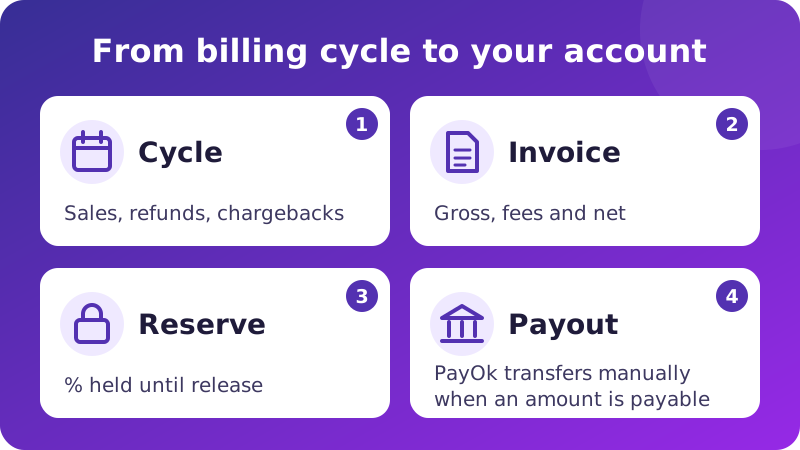
You have made a sale, the customer has paid and the dashboard says Paid. But the money is not in your account yet. Between the payment and the transfer there is a billing cycle, some fees, sometimes a reserve and an invoice that explains it all. In this guide we explain how settlement works in PayOk.
- What the billing cycle is and what goes into each one.
- How to read your invoice, line by line.
- What the rolling reserve is and when it is released.
- How and when the transfer reaches you.
What is settlement and why is it not instant?
Settlement is the calculation of what you are owed from your sales, after fees, refunds, chargebacks, previous balances and, if you have one, the rolling reserve. The transfer of that amount comes later. A payment being authorised does not mean we have already transferred the money to you.
The Paid status means the payment has been accepted. The money then moves between the banks. PayOk is a payment institution registered with the Bank of Spain under number 6928 and works with a financial institution that acts as the acquiring bank. The funds from your sales are held in a safeguarding account, separate from PayOk's own money, as payment regulations require.
Understanding this gap is key for your cash flow. If you count on money that has not been settled yet and a refund comes in meanwhile, the calculation changes.
What goes into each settlement of the billing cycle
Your account has a billing cycle of several days, which PayOk sets when you sign up. You can see it on each invoice, under Billing Cycle. Cycles close at 00:00, Madrid time, and the first one starts with your first live transaction.
Each transaction goes into the cycle of its settlement date.
- Authorised sales. They increase the total.
- Refunds, full or partial, and chargebacks. They are deducted.
- Chargebacks won. They add the amount back.
- Test transactions. They are not invoiced.
When the cycle closes, PayOk generates your invoice automatically. If there was nothing to invoice in that cycle, no invoice is issued.
📌 Each refund or chargeback is deducted in the cycle of its own date, even if the original sale belongs to an earlier cycle.
How to read your PayOk invoice line by line
Your invoices are in the Billing › All invoices menu. Each one shows the details of the cycle's transactions, with their gross amount, fee and net amount. You can download it as a PDF, export it to Excel or print it. The PDF comes out in your account language.
| Item | What it means | Effect on the payout |
|---|---|---|
| Opening balance (carried forward) | What was left over from the previous invoice. | Adds or deducts. |
| Gross Revenue | The total of your sales in the cycle. | Adds. |
| Refunds and chargebacks | The amounts of the cycle's refunds and chargebacks. | Deducts. |
| Fees | The fees for each sale, refund and chargeback. | Deducts. |
| Rolling reserve | The percentage held back, if your account has one. | Deducts now and is released later. |
| Settlement fee | The cost of the transfer to your account. | Deducts only if the invoice has a payable amount. |
| Payable Amount | What is transferred to you. | The final result. |
The fee for each transaction is the one recorded on that transaction. Your fees depend on your terms and the public rates are on the PayOk fees page.
To find out if there is a payable amount, the opening balance, the cycle's net amount and any adjustments are added up, and the reserve is deducted. If the result does not exceed the settlement fee, the payable amount is zero. In that case, the fee is not charged, no reserve is held back and the whole balance carries over to the next invoice. If the closing balance is negative, for example because of a chargeback, it is deducted from your next payout.
The possible invoice statuses are Pending, Paid, Negative balance, Pending balance, No amount or Corrective. Invoices are numbered consecutively each year and, if one needs correcting, PayOk issues a corrective invoice, as the invoicing regulation requires.
What the rolling reserve is and when it is released
The rolling reserve is a percentage of your settlement held back for a period to cover future refunds and chargebacks. It is not a fee. It is your money, kept as a guarantee.
In PayOk, if your account has a reserve, PayOk sets the percentage (5, 10 or 15%) and the holding period according to the risk of your business activity. It applies to the cycle's net amount, only if it is positive. You can see it in Billing › Rolling reserve, with the Blocked amount and the Release date of each hold.
The release date is counted from the date the invoice is issued. When it arrives, the reserve changes to Released and PayOk transfers it to you afterwards, minus anything used to cover a negative balance. At that point it changes to Paid.
A reserve weighs on your business cash flow, so it is worth knowing yours well. If you have questions about its terms, check them with support.
📌 «Released» means the holding period has ended, not that the money is already in your account. When it is transferred, the reserve changes to «Paid».
Balance and movements, what you have available
In Billing › Balance and movements you see your balance and the details of each entry, with sales, fees, refunds, chargebacks, reserves and payouts. Entries cannot be edited or deleted.
- Available balance. What you are owed, not counting the reserve.
- Reserve balance. What is held as rolling reserve.
- Pending transfer. Invoices already issued that have not been paid yet.
- Available for refunds. The available balance minus the pending transfers. This is what you can use for refunds.
The Net Balance on the dashboard home page deducts from your sales the fees for sales, refunds and chargebacks. It does not deduct the refunded or charged back amounts or the reserve. Use it as an activity indicator. What you will be paid is on your invoice.
How and when the transfer reaches you
When the invoice has a payable amount, PayOk makes the bank transfer from the safeguarding account to the account you gave when you signed up, with the reference «PayOk» and the invoice number. It then records the date and the bank reference, and the invoice changes to Paid. In your dashboard you receive alerts for new invoices, paid invoices and reserve movements.
📌 The transfer is not sent automatically when the cycle closes. If an invoice stays «Pending» longer than you expected, write to us with its number.
Your bank account appears masked in the dashboard. If you need to change it, write to support. For security, PayOk makes the change after verifying it. If your balance is negative, PayOk may pause payouts until it is covered.
Frequently asked questions about settlement
How often does PayOk settle my payments?
The invoice is issued when each cycle closes, if there are transactions to invoice. Then, if it has a payable amount, PayOk makes the transfer. PayOk sets your cycle length when you sign up and it appears on each invoice.
Why did I not receive a transfer this cycle?
There may have been nothing to invoice, the balance may not have exceeded the settlement fee or the invoice may have been negative. In the last two cases, the balance carries over to the next invoice.
Is the rolling reserve a fee?
No. It is part of your money held back for a period as a guarantee. When the period ends it is released and paid to you, minus anything it covered for a negative balance.
How does a refund affect my settlement?
The refund deducts its amount and its fee in the cycle in which you make it. We explain this in how to refund a payment in PayOk.
And a chargeback?
It deducts the amount and the chargeback fee. If you win it, the amount comes back into your current cycle, but the fee does not. We cover this in what to do when you receive a chargeback.
Is the dashboard Net Balance what I will be paid?
No. It deducts fees, but not the refunded or charged back amounts or the reserve. What you are paid is the payable amount on your invoice.
Next step
Open Billing in your dashboard, download your latest invoice and compare it with Balance and movements. If something does not add up, write to us at [email protected] with the invoice number.
- Directive (EU) 2015/2366 on payment services (PSD2), which regulates the safeguarding of funds, and Royal Decree-law 19/2018 on payment services (Spanish).
- Royal Decree 1619/2012, the Spanish Regulation on invoicing obligations (Spanish).
- Interchange fees and how Visa and Mastercard make money.
- Payment facilitator or PayFac and how it simplifies your payments.
- What is a safeguarding account?

Leave a Comment