- How to get paid with a payment link, button, e-mail or QR in PayOk
- What is a payment link and when should you use it?
- How to create a payment link step by step
- Payment button, e-mail payment and QR payment
- What your customer sees when paying with the link
- Where you see the payment and which alerts you receive
- Best practices for getting paid by link without surprises
- Frequently asked questions about the payment link
- Next step
- Sources and related reading
How to get paid with a payment link, button, e-mail or QR in PayOk
You have a customer on WhatsApp, on the phone or at the counter and you want to take a card payment now, with no online shop and no developer. That is what PayOk's manual payment tools are for. In this guide we explain how the payment link works, along with the other three ways to get paid from your dashboard.
- Which tool fits each situation.
- What details each one asks for and what your customer sees when paying.
- How long each link lasts and how many payments it can accept.
- Where you see the result and which alerts you receive.
What is a payment link and when should you use it?
A payment link is a web address you send to your customer so they can pay by card on a secure page, without you needing a website or an integration. The customer opens it, fills in their details and pays. For a full explanation, see our glossary entry on what a payment link is.
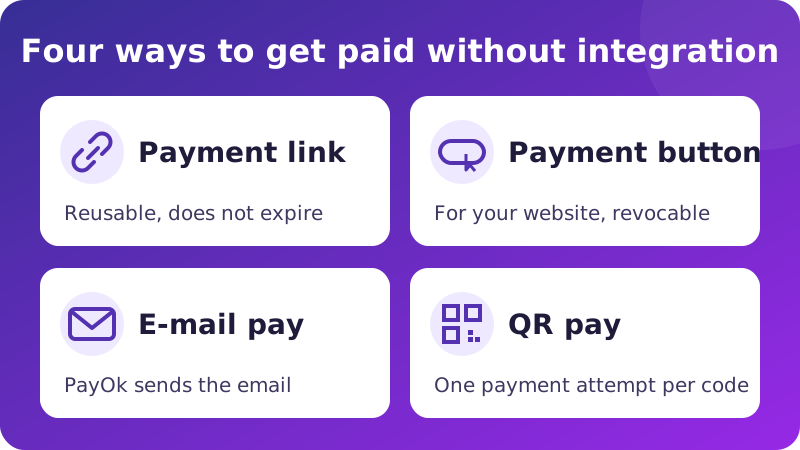
In PayOk the four tools are in the Generate menu of your dashboard, which are Payment link, Payment button, E-mail pay and QR pay. They all lead to the same PayOk payment page and they all charge through the virtual POS assigned to you.
How to create a payment link step by step
- Log in to your dashboard and open Generate › Payment link.
- Enter the amount in euros. If you leave it empty, the amount stays open and your customer types it when paying.
- Add a description (optional, up to 120 characters), for example «Table booking 12 December». Your customer will see it and cannot change it.
- Click Generate payment link and copy the link.
- Send it through the channel you use with your customer, whether that is WhatsApp, SMS, chat or social media.
The link is signed. The amount, the description and the merchant collecting the payment cannot be tampered with. If someone edits the address to change the price, the payment does not go ahead.
📌 The payment link does not expire and accepts several payments. It is ideal for a fixed price you repeat, like a fee or a ticket, but do not publish it where you do not want to receive payments.
Payment button, e-mail payment and QR payment
The other three tools start from the same signed link, but change how it reaches your customer.
Payment button for your website
You choose the text, the button colour and the text colour, and copy the code with Copy HTML to paste it on your website or blog. Buttons created from 27 October 2026 appear in the Generated buttons list. If you stop selling that product, click Revoke. The button stops taking payments at once and cannot be reactivated.
E-mail payment sent by PayOk
You fill in the recipient, the subject, the amount, the description and a message, and PayOk sends the e-mail with a Pay now button. You can see a preview before sending it. The link in the e-mail works just like a payment link. It does not expire and can be forwarded.
QR payment on your website or on screen
You generate a code to paste on your website, in a «Custom HTML» block in WordPress, Wix, Shopify or Squarespace. The QR changes automatically every 5 or 10 minutes, as you choose, and each code expires 10 or 15 minutes after it is generated. Each code is valid for a single payment attempt. It is used up when the payment starts, even if the payment is then declined. To try again, the customer scans the new code.
| Tool | How it reaches the customer | Expiry and uses | When to use it |
|---|---|---|---|
| Payment link | You copy it and send it yourself. | Does not expire. Several payments. | Sales by chat, phone or social media. |
| Payment button | HTML code on your website. | Does not expire. Can be revoked. | Websites with no cart or few products. |
| E-mail payment | E-mail sent by PayOk. | Does not expire. Several payments. | Quotes, invoices and bookings. |
| QR payment | Code on your website or screen. | Changes every 5 or 10 minutes and expires after 10 or 15. One payment attempt per code. | Payment on the spot, with the customer in front of you. |
What your customer sees when paying with the link
Your customer opens the PayOk payment page. With the payment link, the page uses the language saved in their browser or, if there is none, Spanish. With the e-mail and the QR, it uses the language your dashboard was set to when you generated them. In every case they can change it. They fill in their first name, last name, e-mail, address, postcode, phone, country and city, accept the terms and, if the amount is open, enter how much they are paying. Then they enter their card details.
In live payments, PayOk does not store or process the card number or the security code. Depending on your terminal, the customer's browser sends them straight to the bank's gateway, or the customer types them into the gateway's secure form and PayOk only receives an encrypted block it cannot read. This is how we protect card data, as the PCI DSS standard requires.
European payment rules (PSD2) require strong customer authentication for online card payments, except for the exemptions set out in the law. That is why the gateway and the customer's bank may ask them to confirm the payment with 3D Secure, in their app or with a code. You cannot turn this step on or skip it from the dashboard.
📌 Never ask a customer for their card number by WhatsApp, e-mail or phone so you can type it in yourself. Send them the link and let them enter it on the secure page.
Where you see the payment and which alerts you receive
Generating or opening a link does not create any transaction. When the customer starts paying, the payment appears in Transactions with its source, which can be Link, Button, E-mail or QR. While there is no result, the status is Pending. It then changes to Paid if the payment succeeds, or to Cancelled, Declined or Expired if it does not.
- Payment authorised. You receive an e-mail with the subject «Successful Transaction» and an alert in the dashboard. Your customer, if they left their e-mail, receives the payment confirmation with the order number.
- Payment cancelled, declined, expired or blocked by limit. You receive the e-mail «Cancelled Transaction».
Your account has limits on transactions and amounts that PayOk sets according to your business activity. They are checked when the link is generated, when the customer pays and, if the amount is fixed, when the link is opened. If the block happens before the payment starts, no transaction appears. If it happens later, the transaction may appear as Blocked by limit. If your business grows, write to us to review them. What to do next with a paid sale, for example refund it, is explained in how to refund a payment in PayOk.
Best practices for getting paid by link without surprises
- Always add a description. «Order 1458, 2 T-shirts» helps your customer know what they are paying for.
- Use a fixed amount when you know the price. An open amount is handy for donations or deposits, but it means checking every payment.
- Revoke the buttons you no longer use and do not leave payment links published in places you do not control.
- Keep the conversation with the customer. If they ever dispute the payment, it will help you prove the purchase. We explain this in how to defend a chargeback.
📌 The description appears on the payment page and your customer cannot change it. If you leave it empty, they will have to write it themselves.
Frequently asked questions about the payment link
How long does a payment link last?
The payment link you generate in the dashboard does not expire and can be used for multiple payments. If you need to be able to stop payments, use the payment button, which can be revoked.
Can my customer change the amount in the link?
No. If you set the amount, it is signed and cannot be changed. Only if you leave the amount empty does the customer enter it when paying.
What currency do I charge in with the payment link?
Euros. All manual payment tools charge in euros.
Do I need a website to get paid with a payment link?
No. With the payment link or the e-mail payment, all you need is your dashboard and a channel to talk to your customer. The button and the QR do need to be pasted on a website.
Can I enter the card details to take a phone payment (MOTO)?
You will see MOTO pay in your dashboard, but this payment type is not available yet. The dashboard checks the details and does not make any charge. For phone sales, send a payment link. We explain what a MOTO payment is in our glossary.
When do I receive the money from my payments?
Authorised payments go into the billing cycle of their settlement date. The invoice works out the payable amount and then PayOk makes the transfer. The app does not set a payout deadline. We explain this in settlement and invoicing in PayOk.
Next step
A payment link does not replace an online shop, but it lets you take card payments in any conversation. If you already have an account, go to Generate › Payment link and create your first link. If you do not have one yet, create your PayOk account and check the requirements for merchants. If you have questions, write to us at [email protected].

Leave a Comment